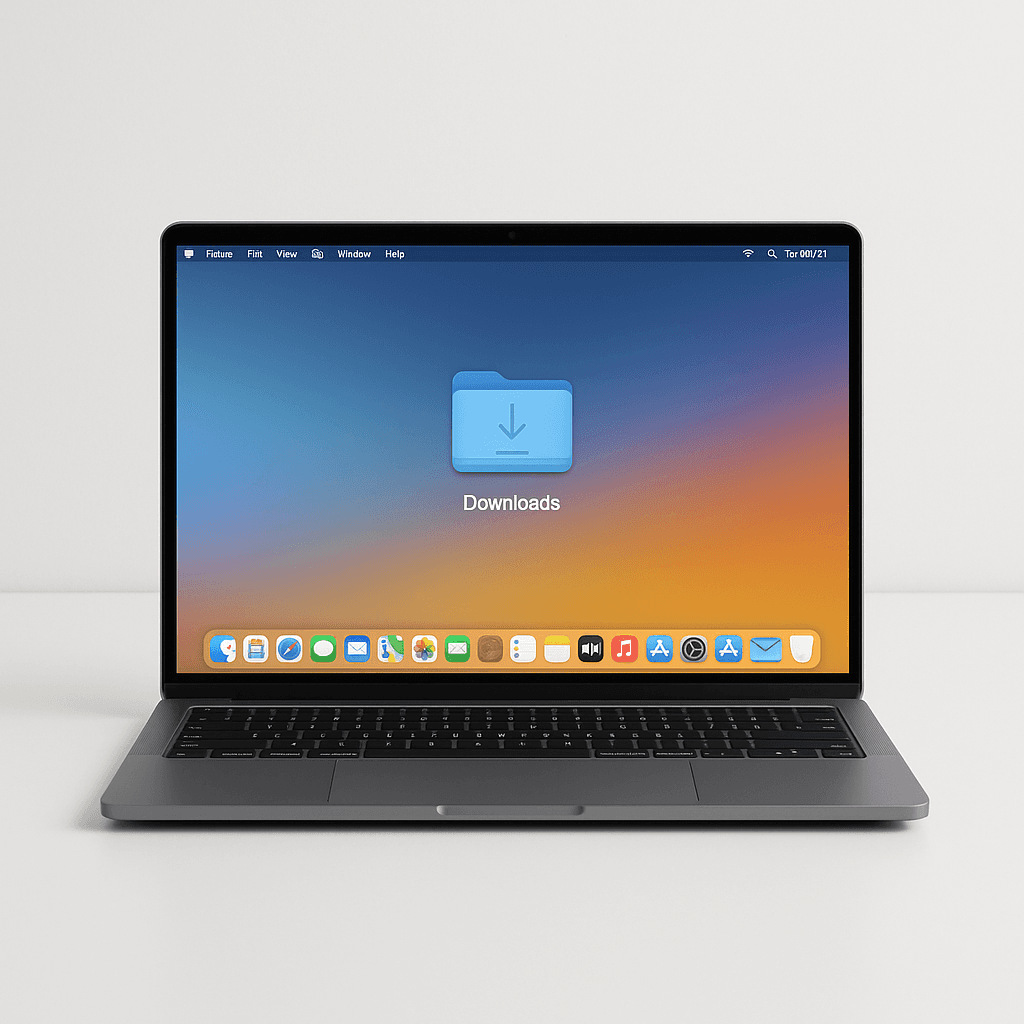
Why should you sync the Downloads folder with iCloud?
The Downloads folder on a MacBook is often a catch‑all for important files. By default, however, this folder is not synced with iCloud. That means downloads are only stored locally on one device and are not automatically available on your other Apple devices.
This is particularly odd because it already works differently on the iPhone: there, downloads are saved in the Files app by default and automatically synced with iCloud Drive.
So why not on the Mac too?
By syncing with iCloud Drive you can:
✅ Access your Downloads from anywhere — whether from your iPhone, iPad, or another Mac.
✅ Save storage space on your Mac — iCloud can store older files only in the cloud and download them on demand.
✅ Keep things more organized — synced downloads are easier to manage and back up.
If you often switch between devices or simply want an automatic backup of your downloads, this solution is perfect for you!
General notes before you begin
Note that changes to system folders should be made with caution. Before making such changes, you should create a backup of your data.
How to set up the synchronization
1. Move the current Downloads folder into iCloud
Open Terminal, enter the following command and press Enter to move the contents of your local Downloads folder into iCloud.
mv ~/Downloads/* ~/Library/Mobile\ Documents/com~apple~CloudDocs/Downloads/2. Delete the local Downloads folder
Enter the following command into Terminal and press Enter to delete your local Downloads folder.
rm -r ~/Downloads3. Make sure your Mac still thinks the folder is there
So your Mac doesn’t create a new Downloads folder and can still find it even though it’s now in iCloud, we’ll create a symbolic link (a shortcut). Copy the following command into your Terminal and press Enter.
ln -s ~/Library/Mobile\ Documents/com~apple~CloudDocs/Downloads ~/Downloads4. Restore the correct icon (optional)
You’ll notice that the Downloads folder now looks like any other folder and the typical Downloads icon is missing. You can easily change this by following the steps below.
Right‑click your new Downloads folder and choose "Get Info"
Open another Finder window and navigate to the following path:
/System/Library/CoreServices/CoreTypes.bundle/Contents/Resources/Find the file named DownloadsFolder.icns
Drag the icon from the opened file directly onto the small icon in the open Info window of the Downloads folder
Here's how to undo the change
If you change your mind and no longer want to sync your Downloads folder with iCloud, you can simply run the following two commands in Terminal.
rm ~/Downloads
mkdir ~/Downloads
Any questions?
We're happy to help you anytime with questions about your Mac.
#iCloud#Mac#Sync